Your online accounts aren’t just convenience. They’re your bank, your retirement fund, your insurance, your mortgage, your taxes, your medical records, your business, and 20 years of photos. Every one of them is locked behind a string of characters that exists in your head or your password manager.
When you can’t type those characters anymore, your family hits a wall. Not a soft wall with a workaround, a hard wall. The banking portal won’t let your spouse in. The insurance company won’t talk to your kids without the policy number that’s stored in an email they can’t access. Crypto in your wallet sits there, mathematically impossible to reach. The cloud storage provider starts a countdown to deletion.
About 39% of Americans keep their passwords entirely in their heads, according to an All About Cookies survey. For those people, every account they own becomes a locked room the moment they’re gone.
So what do you actually do? Most guides online skip over the real tradeoffs. Here’s what each approach actually looks like in practice.
Why Passwords in a Will Is a Bad Idea
Most people’s first instinct is to stick their passwords in their will. Makes sense on the surface, you’re already listing everything of value, so add the digital stuff too.
The problem: wills become public record after probate. In most U.S. states, once a will is filed with the probate court, anyone can request a copy. Your banking credentials, your email login, your crypto seed phrase, all sitting in a document that a stranger can pull with a records request and a small fee.
That should be enough to rule it out. But it gets worse.
Wills are static. You draft them once, maybe update them every few years with a codicil. Your passwords change constantly, you rotate your bank password, enable two-factor on your email, close one brokerage and open another. Within six months, half the passwords in your will are wrong. Updating a legal will means scheduling an appointment, drafting an amendment, getting it witnessed and notarized. Nobody is doing that every time they reset a Gmail password.
The plan that survives you is the one you built before you needed it.
Probate takes time, too. The average U.S. probate process runs six to nine months. Contested estates can drag on for years. Meanwhile, subscriptions are billing, domain names are expiring, and Google is counting down to deleting your inactive Drive. By the time the will is executed and your executor reads the passwords, many don’t work anymore, and some of the accounts no longer exist.
Lawyers themselves will tell you not to do this. The Uniform Fiduciary Access to Digital Assets Act (RUFADAA), adopted in some form by most states, gives fiduciaries certain rights to digital assets. But it’s focused on legal authority, not practical access. Having the legal right to access an account and actually being able to log in are two different things.
The Paper-in-a-Safe Method
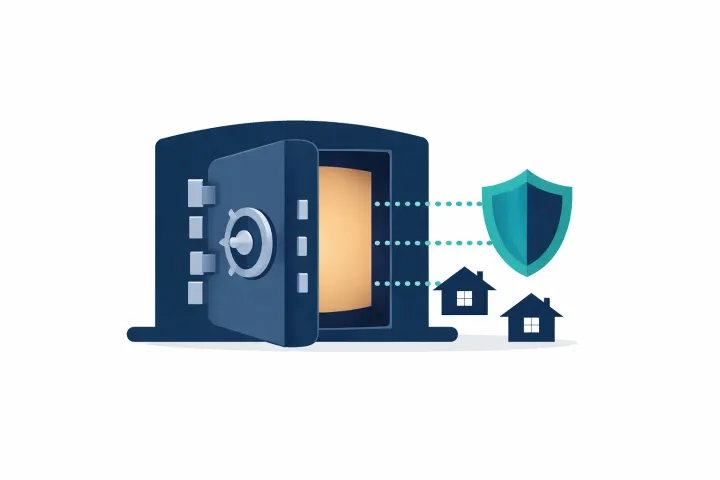
The low-tech classic. Write down your passwords, put the list in a sealed envelope, store it in a fireproof safe or a safety deposit box.
Real advantages here: it’s simple, there’s no software to learn, no subscription to pay, and it can’t be hacked remotely. A law firm blog (Gaggos Flaggman PLLC) that ranks for this topic recommends this approach, and for certain people it genuinely makes sense.
The downsides are just as real, though.
Maintenance kills it. You’ll update the list once, feel good about it, then change three passwords over the next month without touching the paper. Six months later, half the list is stale. You’d need to open the safe, rewrite the list, reseal it, and put it back, regularly. Almost nobody sustains this.
There’s also no access control. Whoever knows the safe combination (or whoever finds the envelope) has everything. All your accounts, all at once, right now. You can’t give your spouse access to the bank while keeping business credentials separate for your partner. It’s all or nothing, and it’s immediate.
Paper doesn’t handle files either. If you need to pass along a PDF of your insurance policy, a photo of your hardware wallet recovery card, or a scan of an important document, paper can’t do that.
Then there’s the physical risk. Fire, flood, theft, or a safe that nobody can open because you never shared the combination. The irony of locking your password list behind another password isn’t lost on anyone.
For someone with a handful of accounts and a spouse they trust completely, paper works. For anyone with a more complex digital life, it’s a starting point at best.
Password Manager Approaches
If you already use a password manager, you might assume the problem is solved. Most major ones have added some form of emergency access or sharing. But “some form” is doing a lot of work in that sentence.
Shared vaults (1Password, Bitwarden, NordPass, Proton Pass family plans) let you share specific logins with family members right now. Great for the Netflix login and the shared bank account. Not great for the “if something happens to me” scenario, it gives people access immediately with no way to time-gate it.
LastPass has a proper emergency access feature. You designate a trusted contact, set a waiting period (up to 30 days), and if you don’t reject their request, they get into your vault. The feature works as designed. The issue is LastPass itself, the 2022 breach exposed encrypted vault data, and a lot of people no longer trust the platform. If you’ve already moved off LastPass, this isn’t pulling you back.
Bitwarden offers emergency access on premium plans ($19.80/year). You assign a trusted contact, they request access, and if you don’t deny it within your set window, they get read-only or takeover access. Solid implementation. The catch: your recipient also needs a Bitwarden account, and the feature is buried deep enough in settings that most users don’t know it exists.
NordPass has emergency access too, but the waiting period is locked at exactly 7 days. Can’t change it. If 7 days doesn’t fit your situation, too short for your comfort, too long for your family’s needs, there’s nothing to adjust.
Proton Pass recently added emergency access as part of the broader Proton ecosystem. The implementation is actually thoughtful: configurable waiting period, integration with ProtonMail and Proton Drive if you’re already in that world. The tradeoff is ecosystem lock-in. Your recipients need Proton accounts, and if you’re not already committed to Proton for everything, adding it just for this feature is a stretch.
1Password has no in-app emergency access feature. Instead, they give you an Emergency Kit, a PDF with your Secret Key and sign-in details that you print and store somewhere. This is the paper-in-a-safe method wearing a branded shirt. Change your master password without reprinting the kit, and it’s useless.
The common thread: emergency access is a secondary feature in products built for daily password management. It’s bolted on, not built in. Setup is usually confusing, your recipients typically need their own accounts (often paid), and the access model is all-or-nothing, someone gets your entire vault, not just the specific items they need. You can’t give your spouse a 7-day window and your sibling a 90-day window. Everyone gets the same treatment.
Built-In Platform Features
Google and Apple have their own mechanisms for handling account access after death. They’re worth setting up, but they only cover their own walled gardens.
Google Inactive Account Manager lets you designate trusted contacts who receive access to your Google data (Gmail, Drive, Photos, YouTube) after a period of inactivity you choose, between 3 and 18 months. If Google detects you haven’t logged in during that window, it notifies your contacts and gives them a download link.
Free, reliable, and everyone should set it up. The limitation is scope: only Google services. Your bank account, your crypto, your non-Google email, your insurance portal, none of that is touched. And the minimum 3-month delay means your family waits at least a quarter of a year, even if the need is immediate.
Apple Legacy Contact lets you designate someone who can request access to your iCloud data after your death. They need a death certificate and an access key generated during setup. Covers iCloud Photos, Drive, Notes, Mail, and a few other Apple services.
Same limitation. Apple only. And the death certificate requirement means this doesn’t help with situations short of death. If you’re in the hospital for two months, incapacitated but alive, your Apple Legacy Contact can’t do anything.
Facebook Legacy Contact / Memorialization lets you choose someone to manage your profile after it’s been memorialized, or you can request account deletion after death. The legacy contact can pin posts and respond to friend requests but can’t read your messages or log into your account. It’s profile management, not actual access.
Each of these is worth enabling, about a few minutes per platform. But they’re narrow solutions. They don’t help with anything outside their own ecosystem, and none of them address the core problem: sharing passwords, files, and credentials across your entire digital life.
Dedicated Tools
A newer category of apps exists specifically for sharing digital information after death or incapacitation. These are tools built from scratch for this use case, not products where it got tacked on later.
AbsentKey is the one we’d reach for first. Instead of requiring check-ins, it waits until someone actually needs access.
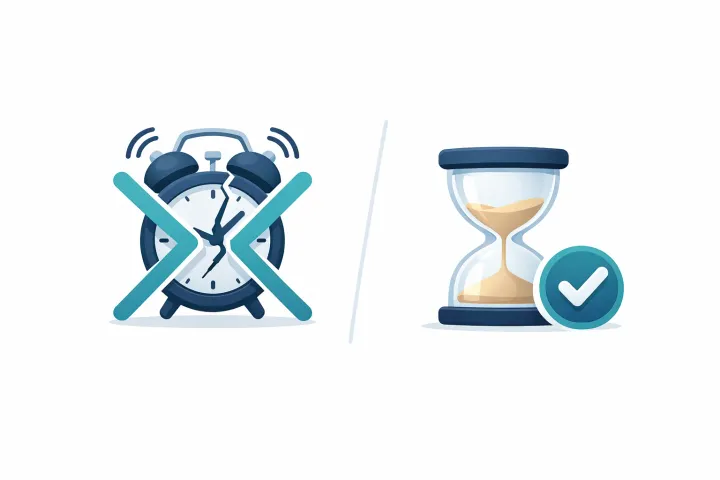
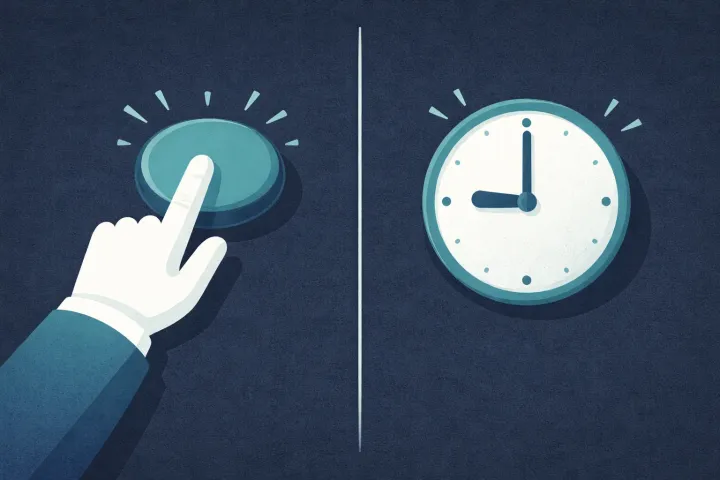
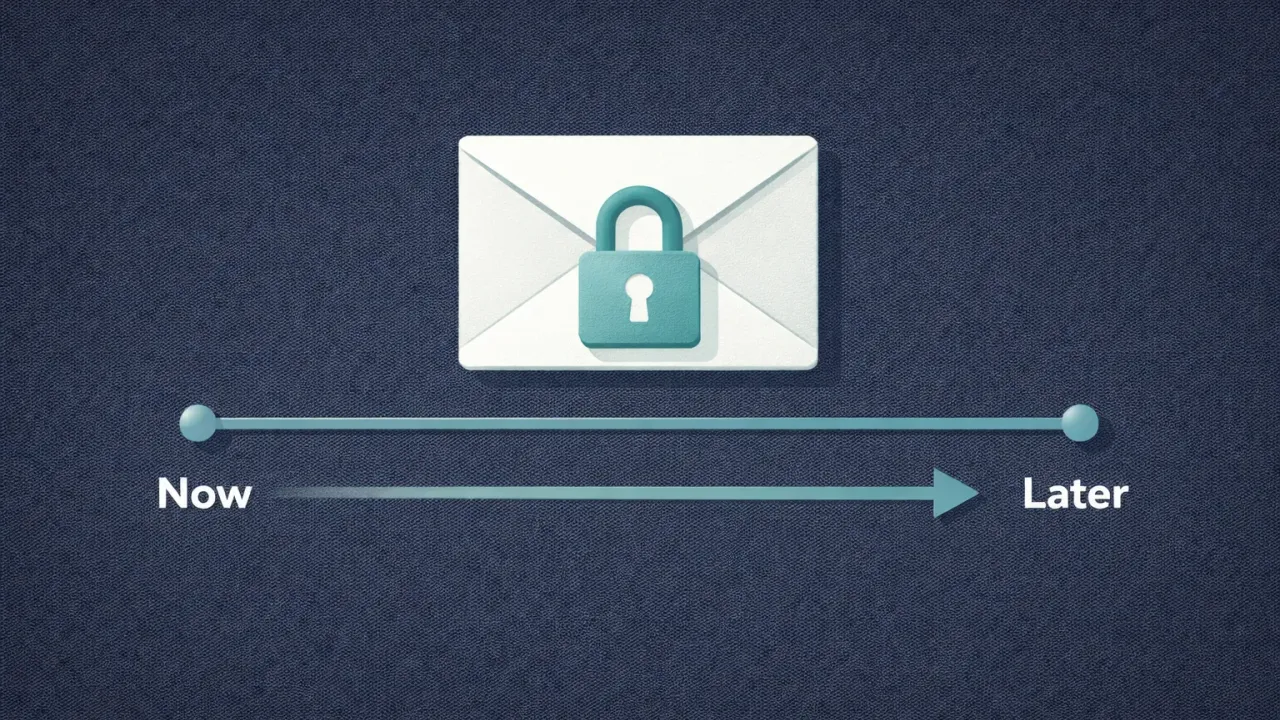
You add your secrets (passwords, files, notes, recovery codes) and assign each one to a specific person. For each person, you set a waiting time, anywhere from 1 day to 365 days. Nothing happens until a recipient opens the app and requests access. When they do, you get notified. You can approve instantly, deny, or just not respond. If you can’t respond (hospital, incapacitated, gone), the timer you set runs out and they get access automatically.
That’s the safety net. It only activates when two things are true: someone asked for access, and you didn’t respond. No daily check-ins. No weekly pings. No countdown ticking in the background.
The per-person timer is what makes it practical for the “after death” scenario. You might set a 3-day window for your spouse (they’d notice quickly), 30 days for your parents, and 90 days for a sibling. Each relationship gets its own calibration.
A few specifics: receiving is always free, your family never pays anything. Secrets are end-to-end encrypted (XSalsa20-Poly1305, X25519 key exchange), and the server never sees plaintext secrets. The mobile client is source-available on GitHub. File attachments are supported with preview. Runs on iOS and Android. Premium for the person sharing is $1.99/month or $19.99/year.
Cipherwill is a web-based digital will platform. You store your digital assets, designate beneficiaries, and everything is end-to-end encrypted. The product is well-designed and the model is straightforward. The issue is the heartbeat requirement, you check in periodically to prove you’re alive. Miss a check-in, and the system assumes something happened and starts releasing data. This creates a low-grade anxiety that makes people stop using it. Go on vacation without cell service, switch phones and forget to reinstall, get busy for a few weeks, and suddenly your brother has your crypto keys because you missed a ping. For a closer look at why check-in systems break down, see the dead man’s switch that doesn’t make you check in.
Purpose-built tools like these fill gaps that general-purpose solutions leave open. You can explore all emergency access options to see how they compare. Password managers handle daily use well but treat emergency access as an afterthought. Platform features only cover their own ecosystems. Paper works until it doesn’t. A dedicated tool makes the “what happens after” question its entire reason for existing.
A Practical Plan
No single tool covers everything. The best approach layers a few together. Here’s what that looks like:
Set up Google Inactive Account Manager and Apple Legacy Contact. Ten minutes, total. Your Google and Apple data reaches the right people. Free, built in, no reason to skip it.
Keep using your password manager for daily use. Whatever you’ve got, 1Password, Bitwarden, NordPass, Proton Pass, is fine. It’s doing its job managing your logins day to day. If it has an emergency access feature, turn it on. But don’t treat it as your whole plan.
Use AbsentKey (or a similar dedicated tool) for the rest. This is where you store the things that matter most but aren’t covered by the other layers: your master email login, banking credentials, crypto seed phrases, insurance portal access, 2FA backup codes, important documents. Assign each to the right person with the right waiting time.
Tell your family the plan exists. This is the step most people skip, and the one that makes everything else work. Your family doesn’t need your passwords today. They need to know a plan exists, that you’ve set it up, and what to do when the time comes. For a full walkthrough on setting that up, see how to share passwords with family in case of emergency. A simple conversation works: “I’ve set things up so you’ll be able to access what you need. You’ll get a notification from AbsentKey when the time is right. You don’t need to do anything until then.”
Without that conversation, the best plan in the world sits unused because nobody knew to look for it.
FAQ
Is it legal to share someone’s passwords after they die?
It’s complicated. RUFADAA (the Uniform Fiduciary Access to Digital Assets Act) gives designated fiduciaries some rights to access digital assets, but enforcement varies by state and by platform. Many services’ terms of use technically prohibit sharing login credentials. In practice, families share passwords after a death all the time, and platforms generally don’t pursue it. The legal landscape is still catching up to reality. For sensitive situations, a conversation with an estate attorney is worth the cost.
What should I share first if I’m just getting started?
Your primary email account. It’s the recovery method for nearly every other account you own, if your family can get into your email, they can reset passwords for most things. After that: banking and financial logins, insurance portals, and any cryptocurrency you hold. These are the accounts where delayed access costs real money. Everything else can follow over time.
What if I don’t want to share everything with one person?
That’s exactly why per-person assignment matters. With a tool like AbsentKey, you choose what each person sees. Your spouse might get financial accounts and insurance logins. Your adult child might get social media and cloud storage. Your business partner might get shared business credentials. Nobody sees anything you haven’t specifically assigned to them, and each person’s waiting time is independent. The access model matches how trust actually works in families, not a single vault dumped to a single person.
Setting this up while everything’s calm takes about ten minutes. Doing it from a hospital bed, or having your family scramble to piece things together after the fact, is a different story.
Download AbsentKey and start with the accounts that would cause the most damage if your family couldn’t reach them. Your email, your bank, your crypto. The rest can follow.