Your spouse needs to pay the mortgage, but the login is on your phone and you are in the hospital. Your parents need your insurance documents, but they do not have any of your passwords. Your adult kids need to manage your accounts, but you never wrote anything down.
Most families don’t plan for this until it’s too late. It’s not just passwords: only 24% of American adults have a will, down from 33% in 2022, and parents of children under 18 are the least likely to have any estate plan at all, according to Caring.com’s 2025 Wills and Estate Planning Study.
There are real solutions, but most guides on “family password sharing” blend two completely different problems together, and the answer to each one looks different.
The Two Different Problems
There’s a meaningful gap between everyday password sharing and emergency access, and most advice online ignores it.
Everyday sharing is things like: the family Netflix login, your shared bank account, the Wi-Fi password. Your family needs these now. The access is mutual and ongoing.
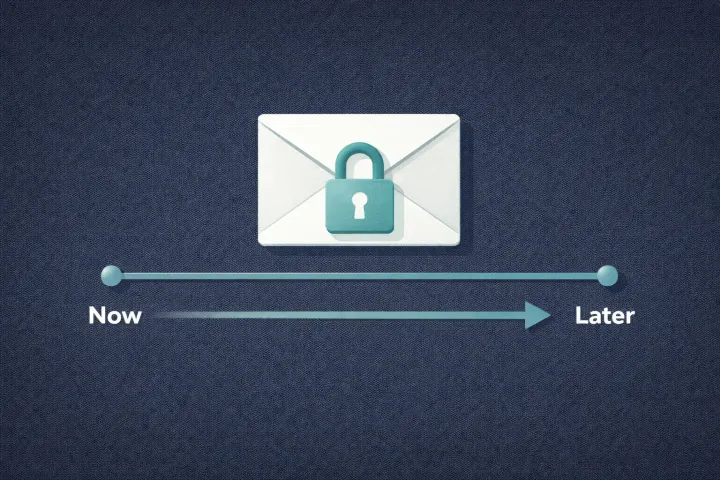
Emergency access is different. Your crypto seed phrase. Your individual bank login. The master password to your email, your business credentials, your 2FA backup codes. You don’t want people to have these today, you want them available if something happens to you and you can’t hand them over yourself.
Password managers are generally good at the first problem. The second one is harder, and it’s what emergency access tools are designed to solve. Get it wrong, and either your family gets locked out when they need access most, or they have more access than you’re comfortable with right now.
For Everyday Sharing: Family Password Managers
If you just need to share logins with your household, a family password manager is probably the right starting point. The major options are solid:
1Password Families ($5.99/month for 5 users) gives each person their own vault plus shared vaults the family can access together. Clean interface, straightforward sharing model. Put a login in a shared vault, everyone sees it.
Bitwarden Families ($3.99/month for 6 users) is the budget-friendly pick. Open-source, audited, does what you’d expect. Shared collections work similarly to 1Password’s shared vaults. Less polish, same functionality.
NordPass Family ($5.99/month for 6 users) takes a similar approach with shared folders. If you’re already in the Nord ecosystem (NordVPN, NordLocker), it fits in neatly.
Proton Pass Family ($4.99/month for 6 users) is the newer entry, part of the Proton ecosystem, open-source. If you’re already using ProtonMail, this keeps everything under one roof.
These all work well for passwords your family needs right now. Where they fall short is the other problem.
For Emergency Access: This Is Where It Gets Harder
Emergency access is the “if something happens to me” scenario. You’re in the hospital, incapacitated, or gone. Someone in your family needs to get into your accounts, and they don’t have the passwords.
Here’s how the major options handle it, and where each has gaps.
Emergency access should trigger only when someone actually needs access not on a schedule.
Password Manager Emergency Access Features
Most password managers have bolted on some form of emergency access, but it’s rarely the focus of the product.
LastPass was one of the first to offer it. You designate a trusted contact; if they request access and you don’t deny it within a waiting period you’ve set, they get into your vault. On paper, great. In practice, LastPass’s security track record has taken serious hits, the 2022 breach exposed encrypted vault data. Many people who still use LastPass for this are doing so because migrating is a hassle, not because they trust it.
Bitwarden added emergency access for premium users ($19.80/year). You assign a trusted contact, they request, you have a window to deny, and if you don’t, they get read-only or full takeover access. The catch: it’s premium-only on your side. You need Premium ($19.80/year) or a Families plan to grant it; your emergency contact can be on the free tier, but they do need a Bitwarden account. And the setup is buried in settings, most Bitwarden users don’t even know it exists.
NordPass has an emergency access feature, but the waiting period is fixed at 7 days. Can’t change it. Want 30 days, or 3, or 6 months? Too bad. Seven days, take it or leave it.
Proton Pass added emergency access in August 2025 for all paid plans. You designate up to five trusted contacts, each with a wait time from none to 30 days. They request access, you can approve or deny during the wait, and if you don’t respond it’s granted automatically. The catch: it covers your Proton account as a whole, both sides need Proton accounts, and passwords you keep anywhere else aren’t covered.
1Password takes a different approach entirely. Instead of in-app emergency access, they give you an “Emergency Kit”, a PDF with your account details, secret key, and master password that you’re supposed to print and store somewhere safe. Deliberately low-tech. This works if you actually print it, store it securely, and update it when you change your master password. In reality, most people print it once, shove it in a drawer, change their password six months later, and the kit becomes useless.
Paper Backup in a Safe
The old-school approach: write down your passwords, seal them in an envelope, put them in a safe or safety deposit box. Tell your family where to find it.
This works, for a moment in time. Passwords change. You add new accounts. You enable 2FA somewhere. That paper list goes stale within months, and updating it means physically opening the safe, rewriting everything, and resealing it. Almost nobody keeps up with this.
It also can’t handle files. If you need to share a PDF, an image of a document, or your crypto wallet backup, paper doesn’t help.
The Dead Man’s Switch Approach
Some apps (Cipherwill, Snug Safety, DGLegacy) take the “dead man’s switch” angle: check in on a schedule, miss a check-in, and the system assumes something happened and starts releasing your data.
The idea makes sense on the surface. But it creates a real anxiety loop. Are you really going to check in to an app every day? Every week? What happens when you go on a two-week vacation without cell service, or spend a few days in the hospital without your phone?
The Problem with Check-Ins
This deserves its own section, it’s the reason a lot of people start looking for alternatives.
Dead man’s switch apps require you to prove you’re alive on a recurring basis. Daily, weekly, monthly. Miss the window, and the system triggers.
Traveling without reliable data. Recovering from surgery. Dealing with a family crisis where an app notification is the last thing on your mind. You switched phones and forgot to reinstall. None of these mean you are dead. To a check-in system, silence equals release-everything.
This isn’t a theoretical concern. It’s the most common complaint in app reviews for dead man’s switch tools. People don’t want the background anxiety of “did I check in today?”
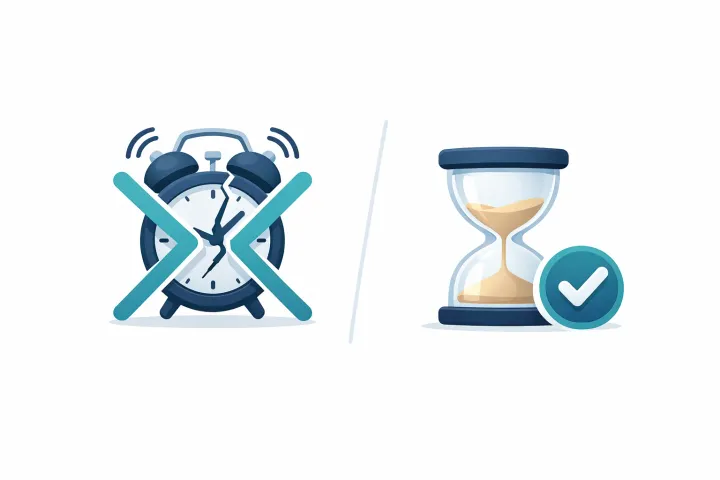
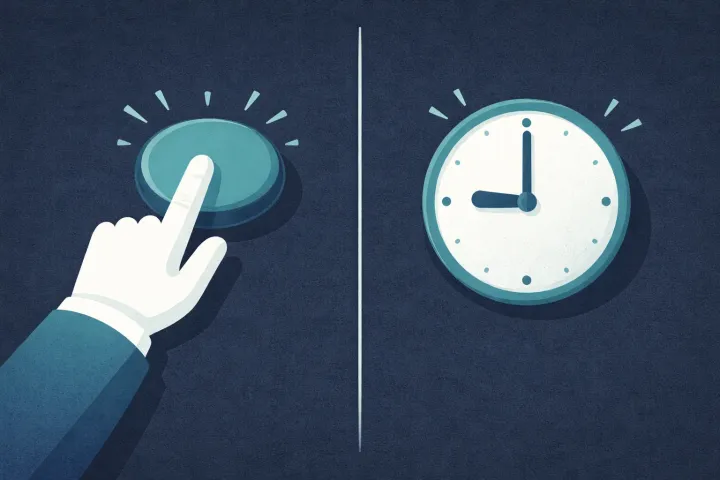
A better model triggers only when someone actually needs access. No periodic check-ins. No countdown running in the background. The clock starts when a specific person makes a specific request. To understand the full distinction, see emergency access vs. dead man’s switch.
How AbsentKey Handles This
AbsentKey is built around a different idea: access should only be requested when it’s needed, and you should always have the chance to respond.
The flow works like this:
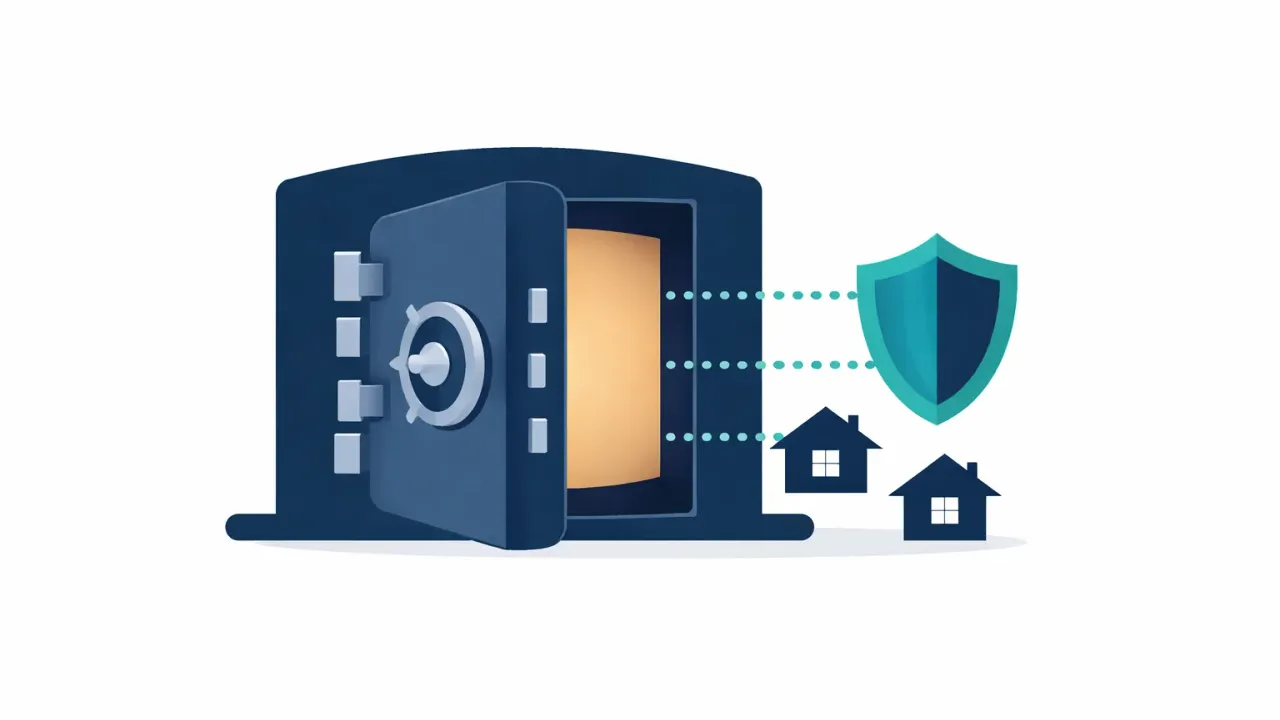
You add your secrets. Passwords, files, notes, crypto backup codes, whatever you want your family to have access to if you can’t be there. Secrets are encrypted on your device before upload.
You pick who gets access. Each person gets invited individually. Your spouse, your parents, your adult child, your business partner. Not a shared vault, per-person decisions about what they can see.
You set a waiting time for each person. Anywhere from 1 day to 365 days, per person. Your spouse might get 3 days. Your parents, 14. Your business partner, 7. You decide based on the relationship and the scenario.
They request access when they need it. Your family members don’t have passive access to anything. When they need in, they open the app and request access. You get notified.
You respond, or you don’t. See the request? Approve instantly or deny it. Can’t respond because you’re in the hospital, incapacitated, or gone? The timer runs out and they get access automatically.
No daily check-ins. No weekly pings. No countdown in the background. The system stays quiet until someone needs it.
Receiving is always free, your family members don’t need a paid account. They download the app, accept the invitation, done. Only the person storing and sharing secrets needs Premium ($1.99/month or $19.99/year). If you want to set things up so your family can access passwords only when conditions are met, you can also share passwords without giving up access.
What to Actually Share with Your Family
Most people know they should share passwords with family “just in case.” Fewer have actually sat down and figured out what to include. Here’s a practical starting list.
Financial accounts. Primary bank login, savings, investment platforms (Vanguard, Fidelity, Schwab, Robinhood, whatever you use), mortgage servicer, credit card portals. If your family needs to pay bills or access funds, these come first.
Insurance information. Health insurance portal, life insurance policy details and company contact info, auto, homeowner’s or renter’s. Families often don’t even know which company to call when they need to file a claim.
Email access. Surprisingly high-priority. Your primary email is usually the recovery method for every other account. If your family can get into your email, they can reset passwords for most things. Share your email login and any 2FA backup codes.
2FA backup codes and authenticator recovery. If you use Google Authenticator, Authy, or 1Password as your authenticator, having the password alone won’t be enough. Share your 2FA backup codes or the recovery key for your authenticator app. Without these, your family hits a wall even with the right password.
Crypto wallets. If you hold any cryptocurrency, this is the big one. Crypto doesn’t have a “forgot password” flow. Seed phrases, wallet passwords, exchange logins, hardware wallet PINs, if your family doesn’t have these, those assets are gone. Permanently.
Government and tax portals. Social security login, IRS account, state tax portal, benefits portals. Dealing with government agencies after a family emergency is already painful enough. Having the logins shaves off some of that friction.
Social media accounts. Not for posting, for memorializing or closing accounts. Facebook, Instagram, Twitter/X, LinkedIn. Each platform has different rules about what happens to accounts after someone passes, and having the login speeds up the process.
Safe combinations and physical security codes. Home security system code, safe combination, storage unit access code. Easy to forget about because they’re not “digital,” but just as important.
Important documents. Scanned copies of your will (not a replacement for the legal original, but helpful for reference), power of attorney, advance healthcare directive, property deeds, vehicle titles. These can be stored as files alongside your passwords.
You don’t have to do all of this in one sitting. Start with the financial accounts and email. Add more over time.
FAQ
Can’t I just write my passwords in a shared Google Doc?
You can, but a shared Google Doc is accessible to anyone with the link and stored in plaintext on Google’s servers. If either your account or your family member’s gets compromised, everything in that doc is exposed. There’s also no access control, your family has those passwords right now, whether they need them or not. For everyday shared logins, a Google Doc is fine. For sensitive emergency-access info, it’s a real risk.
What if my family member’s phone gets stolen?
With AbsentKey, a stolen phone doesn’t mean access to your secrets. The app requires authentication to open, and secrets are encrypted at rest on the device. Even if someone gets past the lock screen, they’d still need to authenticate in the app. And if they request access to your secrets, you get notified and can deny it.
How is this different from just using a password manager’s family plan?
A password manager family plan is great for sharing logins your family needs right now. Netflix, the shared bank account, Wi-Fi. AbsentKey is for things you don’t want to share yet: your personal bank login, crypto keys, business credentials. Things your family should only access if you can’t hand them over yourself. Plenty of people use both: a password manager for daily sharing, AbsentKey for the safety net.
If you’ve been meaning to set this up, ten minutes is all it takes to add your most important secrets and invite your family.
Download AbsentKey and start with the accounts that matter most.