To hide photos on an iPhone, use the Hidden album in Photos. On Android, use Google Photos Locked Folder, and on a Samsung Galaxy there’s also Secure Folder. Each takes about a minute to set up and keeps private pictures out of the main grid when you hand your phone to someone.
Quick answer:
- iPhone: open Photos, press and hold a photo, tap Hide. It moves to the Hidden album, which opens with Face ID, Touch ID, or your passcode.
- Android (any phone with Google Photos): go to Collections > Locked, set up Locked Folder, then select photos and tap Add to > Move to Locked Folder.
- Samsung Galaxy: turn on Secure Folder in Settings, then in Gallery select photos and tap More options > Move to Secure Folder.
- Xiaomi, Redmi, POCO: in Gallery, select photos and add them to the Private album.
All of these keep photos out of the main gallery. Most of them do nothing against someone who knows your phone’s passcode, and the cloud copy usually stays readable to Apple or Google. Hidden folders can be found. Encrypted files can’t be read.
The steps for each platform come first, checked against the Apple, Google, Samsung, and Xiaomi support pages as of November 2026. Then: how to move the photos that matter into AbsentKey, a free vault that encrypts them on your phone and can share one with someone you trust right away, on your approval, or after a waiting time, with no check-ins.
How to hide photos on iPhone with the Hidden album
The iPhone’s built-in way to hide photos is the Hidden album in the Photos app. Since iOS 16 it’s locked by default and needs Face ID, Touch ID, or your passcode to open (Apple Support). The steps below match current iOS.
Hide a photo or video
- Open Photos.
- Press and hold the photo or video you want to hide. To hide several at once, tap Select, pick them, then tap the More button.
- Tap Hide, then confirm.
The photo leaves your library, your other albums, and the Photos widget on your Home Screen. From now on it only shows up in the Hidden album.
Find and unhide a photo
- Open Photos and tap Collections.
- Scroll down to Utilities and tap Hidden.
- Tap View Album and unlock with Face ID or Touch ID.
- Press and hold the photo, then tap Unhide.
Hide the Hidden album itself
By default, anyone scrolling through your albums can see that a Hidden album exists. You can remove it from view:
- Open Settings, tap Apps, then tap Photos.
- Scroll down and turn off Show Hidden Album.
The photos aren’t deleted. They stay in your library, hidden, until you turn the setting back on (Apple Personal Safety guide).
What the Hidden album doesn’t do
Your passcode opens it. The Hidden album uses the same lock that protects your phone, so a partner, a child, or anyone who has watched you type your code can get in.
It syncs everywhere. “If you use iCloud Photos, the photos that you hide on one device are hidden on your other devices too,” says Apple. Hidden photos are still part of your iCloud library and move to a new iPhone with it. Anyone with access to your Apple Account, or to another device signed in to it, can reach them.
Apple keeps the iCloud keys by default. Under standard data protection, Apple holds the encryption keys for iCloud Photos. Photos become end-to-end encrypted only if you turn on Advanced Data Protection (Apple Support).
How to hide photos on Android with Google Photos Locked Folder
Google Photos Locked Folder is the Android version of a hidden album. It works on Android 6 and later, uses your phone’s screen lock as its password, and keeps photos out of the grid, search, albums, and other apps that can read your photos (Google Photos Help).
Set up Locked Folder and move photos in
- Open Google Photos and tap Collections at the bottom.
- Tap Locked, then Set up Locked Folder, and unlock your phone when asked.
- Go back to Photos and select the photos or videos you want to hide.
- Tap Add to, then Move to Locked Folder, and confirm with Move.
To open it later, go to Collections > Locked and unlock with your screen lock. You can’t set a different password for it. Locked Folder is also in the Google Photos app on iPhone, where it opens with Face ID, Touch ID, or the device passcode, and on the web (Google blog).
Decide whether to back up Locked Folder
This choice matters more than the setup. Locked Folder backup is its own switch: profile picture > Photos settings > Backup > Back up Locked Folder. It only works if backup is already on for the rest of your photos.
If backup is off, Locked Folder photos exist only on that phone. Google says they’re deleted if you uninstall Google Photos, clear its app data, factory reset the phone, or lose or damage it. They also aren’t copied when you move to a new phone by cable or cloud transfer. And moving a photo into a Locked Folder that isn’t backed up deletes its existing Google Photos backup.
If backup is on, the photos live in your Google Account and open on your other devices with that device’s lock. On the web, Google’s help page says anyone who has your Google Account password can unlock the folder. Convenient, and also one more way in.
A hidden album keeps photos out of your camera roll. It doesn't keep them from anyone who knows your passcode.
How to hide photos on a Samsung Galaxy with Secure Folder
Samsung Secure Folder is a separate space on Galaxy phones with its own lock. It’s built on Samsung Knox, which Samsung says encrypts everything stored inside (Samsung UK Support). If you own a Galaxy, it’s the strongest option that comes with the phone.
Set up Secure Folder
- Open Settings > Security and privacy > More security settings > Secure Folder. Menu names can differ slightly between One UI versions.
- Sign in to your Samsung account, or create one.
- Wait for setup to finish, tap Done, and choose a lock type: pattern, PIN, password, or biometrics.
Pick a lock that’s different from your screen lock. If you reuse the same PIN, you’ve removed the main reason Secure Folder is stronger than a hidden album.
Move photos into Secure Folder
- Open Gallery and select the photos or videos.
- Tap More options (three dots), then Move to Secure Folder.
You can also open Secure Folder, tap More options > Add files, and pick images. Samsung asks whether to copy or move them. Choose Move, because a copy leaves the original in your main gallery.
What to watch out for with Secure Folder
Backup is limited. Samsung’s support page says Secure Folder’s own backup isn’t available on Galaxy devices from Android 11 on, and recommends Smart Switch or each app’s backup instead (Samsung PH Support). The same page tells you to keep a copy in another secure location before you save anything there.
Your Samsung account can reset the lock. If you forget the Secure Folder PIN, you can reset it with your Samsung account password. That makes the account password a second way in.
Secure Folder is Galaxy only. If you switch brands, you have to move everything out first.
Other Android phones: Xiaomi and private space
Xiaomi, Redmi, and POCO (HyperOS and MIUI)
Xiaomi’s Gallery has a Private album. Xiaomi’s support page says to select photos in Gallery, tap Add to album, and choose the Private album. The first time, you need to sign in with a Xiaomi (Mi) account (Xiaomi Support).
You can also hide a whole album: press and hold it, tap Hide, then OK. To bring it back, open Gallery’s three-dot menu, go to Settings > View hidden albums, and tap Unhide (Xiaomi Support). Menus move around between HyperOS releases, so look for “private” or “hidden” in Gallery settings if the path doesn’t match.
Android 15 private space
Android 15 and later add private space, set up from Settings > Security & privacy > Private space (Android Help). It hides apps, not individual photos. Lock it and its apps disappear from the app list, which is handy if you’d rather your vault app stayed out of sight too.
Hidden vs encrypted: what each option protects
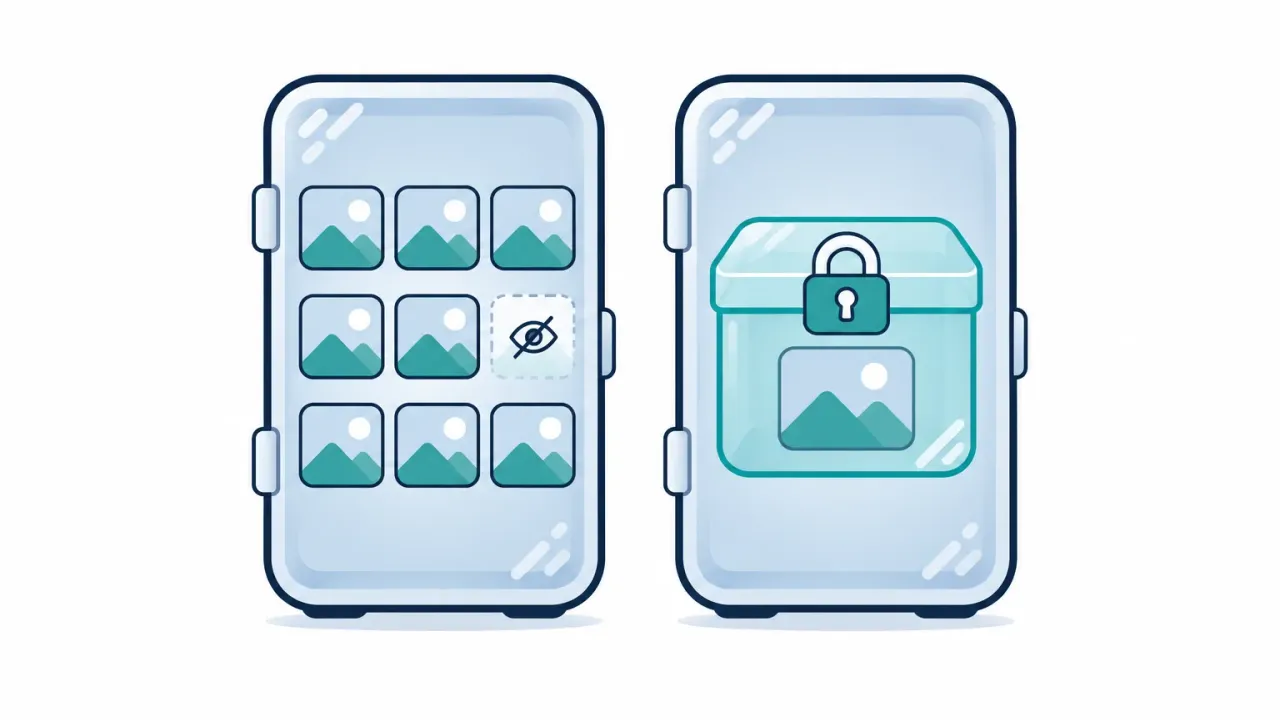
Hiding moves a photo out of view. Encrypting makes the file unreadable without a key. Phones already encrypt their storage, so the real question is who holds the key. For the iPhone Hidden album and Google Photos Locked Folder, the cloud copy is readable with Apple’s or Google’s keys by default.
| Option | Where the photos live | Who can read the cloud copy | Works on | Moving to a new phone |
|---|---|---|---|---|
| ★ AbsentKey | Encrypted inside the app, outside your photo library | Only you. It’s encrypted on your phone first | iPhone, Android | Encrypted backup (Premium) restores with your 12-word recovery phrase |
| iPhone Hidden album | In your Photos library, in a locked album | Apple holds the keys unless Advanced Data Protection is on | Apple devices | Comes along with iCloud Photos |
| Google Photos Locked Folder | In Google Photos, behind your screen lock | Google holds the keys | Android, iPhone, web | Only if Locked Folder backup is on |
| Samsung Secure Folder | Knox-encrypted space on one phone | No built-in cloud backup on current models | Samsung Galaxy | Smart Switch or each app’s own backup |
Whether hiding is enough depends on who you’re hiding photos from.
So a hidden album covers the glance over your shoulder. For photos you’d hate to see leak, or documents someone could use to impersonate you, you want the files themselves encrypted with a key only you hold. For more on why the key matters, read what an encrypted vault app is.
When do you need an encrypted photo vault?
A hidden album probably isn’t enough if any of these sound familiar:
- The photos are really documents: passport and ID scans, bank cards, medical results, tax forms, or a photo of a crypto seed phrase.
- You don’t want them in your Google or iCloud library. Hidden photos sync with everything else, and by default the provider holds the keys.
- You use both iPhone and Android. Each built-in option is locked to its own platform or brand.
- Someone else needs a few of them. A passport scan sent in a chat stays in that chat for years.
An encrypted vault encrypts each photo itself, so the file is unreadable outside the app, and if it syncs, it uploads only encrypted files. If you’re comparing apps, see our guide to photo vault apps that actually encrypt. In short, look for on-device encryption and zero-knowledge sync, and skip apps that mostly sell a fake calculator icon.
How to hide photos in an encrypted vault with AbsentKey
AbsentKey is a free encrypted vault for iPhone and Android. Each photo is encrypted on your phone before it’s stored, and it sits inside the app, outside your photo library and your iCloud or Google account. The app locks with Face ID, your fingerprint, or your screen lock. It works offline, with no account, no ads, and no item limit. We can’t read your secrets. Nobody can.
It isn’t a photo-only app either. Any file type goes in, and photos, videos, and PDFs open inside the app, so ID scans and private photos sit in one place.
Moving photos out of your camera roll takes a few minutes:
- Install AbsentKey from the download page and turn on the app lock.
- Write down your 12-word recovery phrase and keep it away from your phone. It’s the only way to restore an encrypted backup on a new phone.
- Add the sensitive photos and videos from your library. The vault keeps an encrypted copy.
- Delete the originals from Photos or Google Photos, then empty Recently Deleted (the Trash in Google Photos). Otherwise the unencrypted copy is still sitting there, often synced to the cloud.
Share a photo on your terms
Some photos need to reach one other person, like a passport scan for your partner or an insurance photo for a parent. With Premium you share each secret with the people you choose, and for each person you pick how access works: right away, on your approval, or after a waiting time of 1 to 365 days.
With a waiting time, the person requests access, and if you can’t respond before the time runs out, they get in. There are no check-ins. Nothing happens unless they ask, and you see every request. That’s how emergency access works in AbsentKey, and receiving a shared secret is always free.
Storing secrets on your phone is free. Encrypted cloud backup and sharing are Premium, at $1.99 a month or $19.99 a year. Keeping recovery codes in a notes app too? See our roundup of encrypted notes apps.
FAQ
Can someone see my hidden photos on iPhone?
Yes, if they know your passcode. Since iOS 16 the iPhone Hidden album needs Face ID, Touch ID, or your passcode, so a stranger can’t browse it. Anyone who can unlock your phone can open it, and so can someone using another device signed in to your Apple Account with iCloud Photos turned on.
Does turning off “Show Hidden Album” delete my photos?
No. Turning off Show Hidden Album in Settings > Apps > Photos only removes the Hidden album from the Photos app on your iPhone. The photos stay in your library, still hidden, and the album comes back as soon as you turn the setting on again.
Is Google Photos Locked Folder backed up to the cloud?
Only if you turn it on. Backup for Google Photos Locked Folder is a separate setting under Photos settings > Backup. With it off, Locked Folder photos live only on that phone, and Google says they’re deleted if you uninstall Google Photos, clear its data, factory reset the phone, or lose it.
Do hidden photos transfer to a new phone?
It depends on the method. iPhone Hidden album photos sync through iCloud Photos with the rest of your library. Google Photos Locked Folder items reach a new phone only if Locked Folder backup is on. Samsung points Secure Folder users to Smart Switch. AbsentKey restores an encrypted cloud backup, a Premium feature, after you enter your 12-word recovery phrase.
Is Samsung Secure Folder encrypted?
Yes. Samsung says Secure Folder uses Knox to encrypt the data inside, and it can have its own lock. It’s tied to your Galaxy phone and Samsung account, though, and its built-in backup isn’t available on Galaxy devices from Android 11 on, so keep another copy of anything important.
What’s the safest way to hide photos on a phone?
Put them in an encrypted vault app, then delete the originals from your gallery and from Recently Deleted. Hiding only removes photos from view. Encryption turns the file itself into data nobody can read without the key, including the company that runs the app. AbsentKey does this for free on iPhone and Android, for photos and any other file type.
A hidden album keeps private photos off the screen. Encryption keeps the files themselves private. Download AbsentKey, move your sensitive photos into the free encrypted vault, and clear them out of your camera roll. Cloud backup and sharing are there with Premium when you want them. More guides are in our encrypted vault hub.